

How to Set up Meta Pixel: A Step-by-step Guide
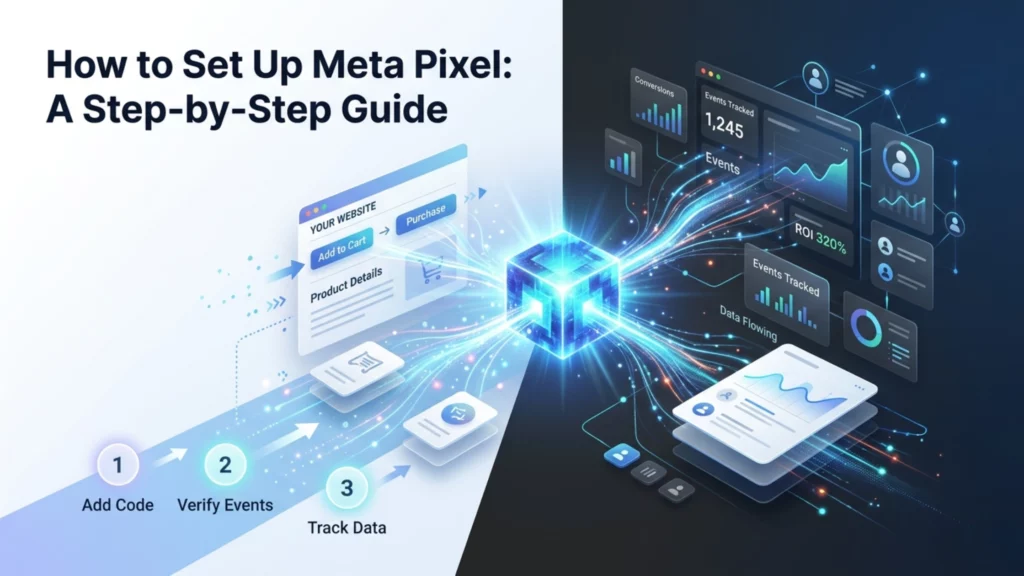
Table of Contents
ToggleWhat is Meta Pixel?
Meta pixel (formerly known as facebook pixel), is a snippet of JavaScript code that is embedded into a website and helps the website administrators track the actions undertaken on the site by visitors and connect this data to Meta’s ad servers.
How is it helpful?
- Helps businesses measure the effectiveness of the ads they run on Meta platforms like Facebook and Instagram.
- Help in targeting and retargeting audiences.
- Helps in optimizing ad campaigns that drive conversion.
Things you Must Have before You Set-up Meta Pixel
- A Meta Business Suite/ Business Manager account.
- Admin access to the website where you are going to embed the pixel
- Developer support might be needed if you install the pixel code manually.
- For best results, you may link Conversions API alongside the pixel. (it is not mandatory but is definitely recommended)
Step 1 – Logging In
- Go to Meta Business Suite (business.facebook.com)
- In the left menu, find and open Events Manager
- Click the “Connect Data Sources” button (often a green plus)
- Choose Web and click Connect
Step 2 – Creating the Meta Pixel
- Choose Meta Pixel as the data source
- Give your pixel a descriptive name (e.g., GyanerPixel)
- Click Create Pixel, after creation, you’ll see a unique Pixel ID (a 15–16 digit number)
Step 3 – Installing Pixel on Your Website
There are two primary ways in which you can embed the pixel you created on your website:
- Partner Integration (which requires no code) – You paste your website’s URL in Events Manager and Meta checks for available partner set-up.
- Manual Code Installation.
Adding Meta Pixel Through Partner Integration
How to Add Meta Pixel on Shopify?
- From your Shopify admin, go to Sales channels > Facebook & Instagram.
- Click Settings, and then click Share data settings.
- In the Customer data-sharing section, click the Enable data-sharing toggle.
- In the Choose data-sharing level section select Standard, Enhanced, or Maximum.
- Select your pixel from the list.
- Click Confirm.
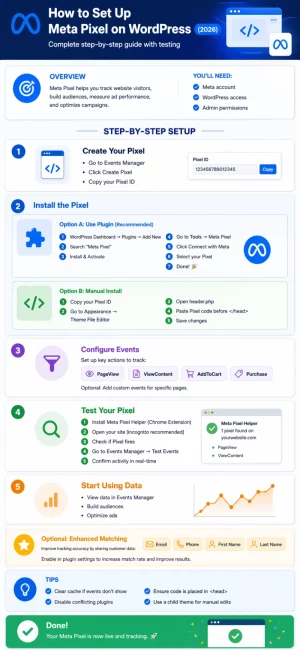
How to Add Meta Pixel on WordPress?
- WordPress dashboard > Plugins > Add New.
- In the right side search bar, write Meta Pixel for WordPress > click Install Now.
- When done, click Activate.
- You’ll be redirected to the Plugins page. Scroll down to find Meta Pixel for WordPress > click Settings > Get started
- From the popup, login to the Facebook account that’s connected to your Meta Business Suite account > click Next.
- On the next popup screen, confirm your settings by making sure the correct Business Manager, Facebook page, Instagram profile (if applicable), Ad Account, and Meta Pixel are selected. You can change this by clicking on each one. Click Next > click Done.
- Back on the WordPress dashboard, check and confirm that the plugin is allowed to share its token with the site.
How to add a Meta Pixel Manually to Any Site?
It is advised that you take a developer’s support to install meta pixel manually because an error can lead to the malfunctioning of entire website codes. Manual installation happens in two steps:
- Copy the base code from Events Manager.
- Paste the code into the <head> section of your website’s HTML code.
How to Check if Your Pixels are Firing Correctly?
We are going to discuss two easiest ways to check if your pixels are firing correctly, one is through the extension named “Meta Pixel Helper” and the other using Meta’s built in tool for live testing.
Test Pixel Using Meta Pixel Helper:
- Install Meta Pixel Helper from the Chrome Web Store.
- Open your website in Chrome.
- Click the Pixel Helper icon in the browser toolbar.
- Check for:
- Green checkmarks → pixel is firing correctly.
- Red or yellow warnings → issues or missing events.
- Click the pixel to see events it’s detecting, like PageView, AddToCart, Purchase.
Test Pixel Using Meta Events Manager’s Test Events Tool
- Go to Meta Business Suite → Events Manager.
- Select your Pixel.
- Click Test Events in the menu.
- Enter your website URL and open it in the browser.
- Interact with your site:
- Navigate pages → should trigger PageView
- Add products to cart → should trigger AddToCart
- Complete checkout → should trigger Purchase
- Watch real-time events in Events Manager.
Fixes If Pixel Is not Firing
- Ensure the Pixel ID matches exactly.
- Pixel code must be in the <head> of every page.
- Avoid duplicate pixels — only one per site.
- Clear cache/CDN if changes don’t appear immediately.
- Check browser ad blockers — they can block pixels during testing.
The Importance of Learning to Navigate Social Media Advertisement.

The revenue generated by Meta, through Meta ads has increased manifold through the years. This level of investment in Meta ads point at how brands allocate advertising funds today. A lot of money has been rolled back from TVCs and radio advertisements and put into social media advertisements. The importance of learning to navigate the social media advertisement scenario has become crucial for digital marketers. Care has to be taken to not only strategically learn how to run campaigns on Meta Ads but also how to keep track of user engagement. Several online digital marketing courses can offer guidance on how to set up your advertising strategy based on the requirements of your brand. If you are a digital marketer, such courses can help you land high paying jobs in brands that allocate lump sums in online advertising.
FAQs
Yes, use partner integrations like Shopify or WordPress plugins. No coding required.
Yes, it tracks user activity across Facebook and Instagram linked to your ad account.
It usually starts tracking immediately after installation and page visits.
No, only one pixel per site is recommended to avoid data conflicts.
Developer help is recommended only for manual code installation to avoid errors.

