

Google Search Console: A Complete Guide for Beginners in 2026
Google Search Console is a free tool provided to you by Google, that helps you monitor your website’s performance on Google search. The following are the insights that you gain about your website from Google Search Console:
- How people find you on Google
- What pages are performing well.
- Why are some pages not showing up on search results
- Which keywords are working in your favour.
- How to improve your SEO.
Table of Contents
ToggleWalking Through the Menu
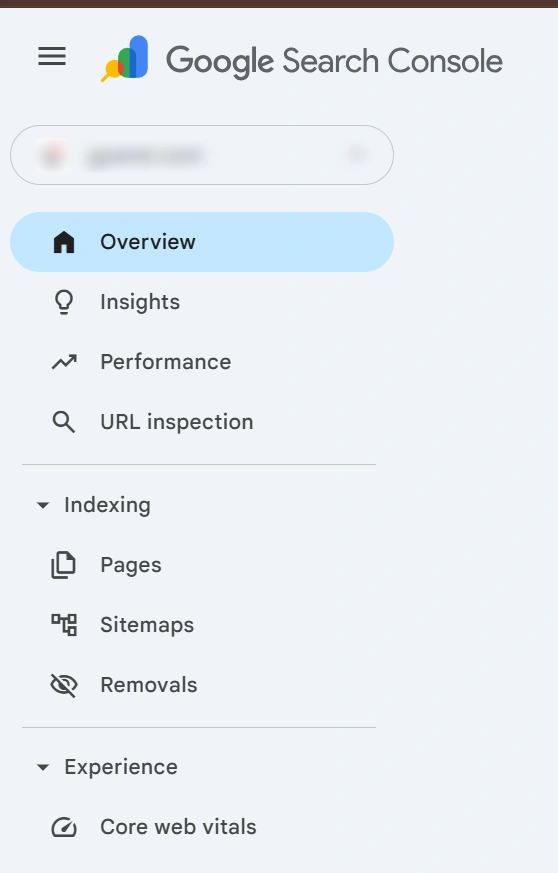
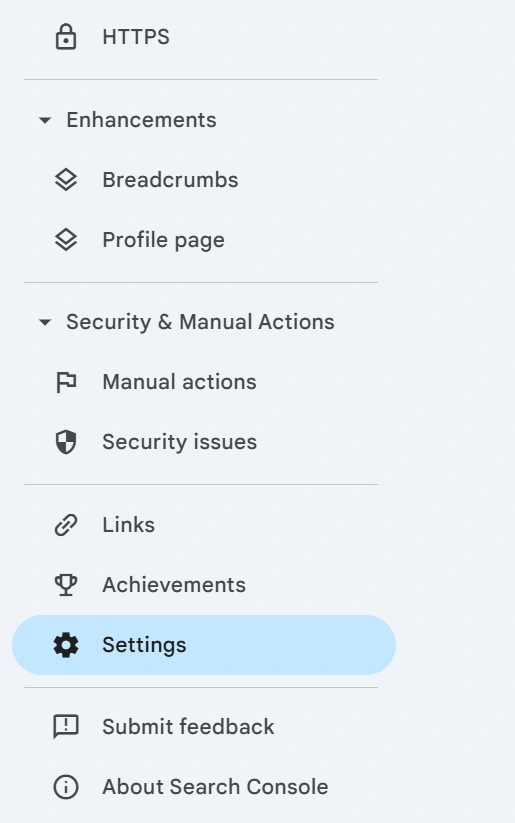
Fig 1. The Google Search Console Menu
1. Overview
When you click on the overview tab on the dashboard you will be able to see a quick snapshot of the following:
- Performance – This section shows you how many clicks your website is getting from appearing on Google search results.
- Recommendation – Here Google lets you know which of your pages are getting more or less impressions than usual.
- Indexing – Shows you the number of indexed (pages showing up on search results) and unindexed (pages not showing up on search results) pages
- Experience – Here, issues related to user experience are highlighted. They are called Core Web Vitals. This section essentially shows you how your site and its pages are performing on mobile and desktop, how many pages are performing well and how many need improvement.
- Enhancements – This section tells you if there are any problems in the schema markup of your site.
2. Insights
When you click on insights you will be able to see the clicks and impressions on top followed by a section called “Your Content”, this section has three parts:
- Top – Shows you your top performing pages.
- Trending Up – Shows you pages that are getting more clicks than before
- Trending Down – Shows you pages that are performing less than before.
3. Performance
This section gives you a detailed report of your performance on search results and Discover. The following information can be obtained here:
- Total clicks
- Total impressions
- Average CTR or click through rate, which shows the percentage of people who have clicked on a link after seeing an ad, an email and so on.
- Average position of your pages on search results
The above are plotted on a graph. This is followed by a table that has the following segments:
- Queries – Shows you the popular queries that your pages are ranking for and how many clicks and impressions the relevant pages are getting.
- Pages – Shows you your top pages and how many clicks and impressions they are getting.
- Countries – Shows you how your website is performing in various countries.
- Devices – How your site is performing on mobile and desktop.
- Search Appearance – shows how your website appears visually in Google search results instead of only showing clicks and impressions, it breaks down the type of search result format your page appeared in. There are two formats in which results are shown, the simple blue link format and rich results. Rich results include ratings, FAQs and so on.
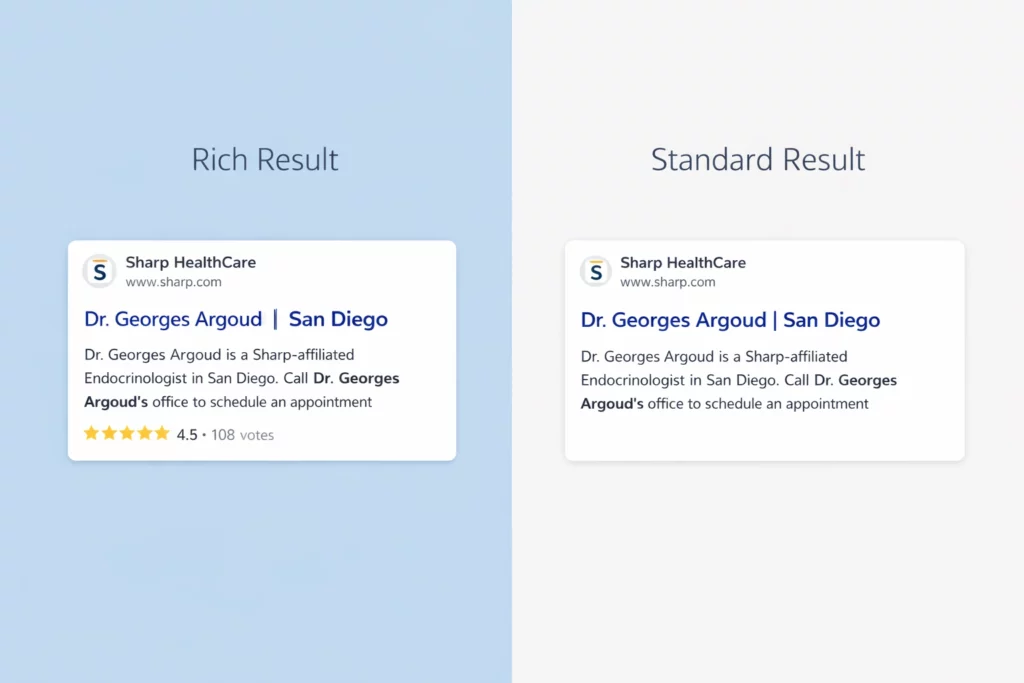
Fig 2. Difference Between Standard Result and Rich Result
4. URL Inspection
Here, you can paste the link of any of your website’s pages and obtain the following information about it:
- If the URL is on google – Here you can request your page to be indexed.
- If the page has been indexed
- If the pages are being served over HTTPS – If you click on this, you will be able to see when the page has been crawled.
- Breadcrumbs – shows you what item on the page is eligible for appearing on Google as rich results.
5. Indexing
This next section has three subsections, they are as follows:
- Pages – Shows you how many of your pages are indexed and how many are not. Scroll further down and you will be able to see why some of your pages are not indexed.
- Sitemaps – Here, you can submit your xml sitemap to Google and make sure your pages are being crawled and indexed by the search engine. Head over to our blog “Why your Website Needs a Sitemap: Its Functions, Types and How to Use Them Effectively”, to know all that there is to know about sitemaps.
- Removals – Shows you the status of pages that you have requested to be removed from search results.
6. Experience
As the name of this section suggests, it is about how users are experiencing your site. It has two sections:
- Core Web Vitals – Shows you how your pages are performing on mobile and desktop and if any page needs to be improved. You can also get page speed insights from this section, which will provide you with detailed metrics of your page’s performance, accessibility, SEO and Best Practices.
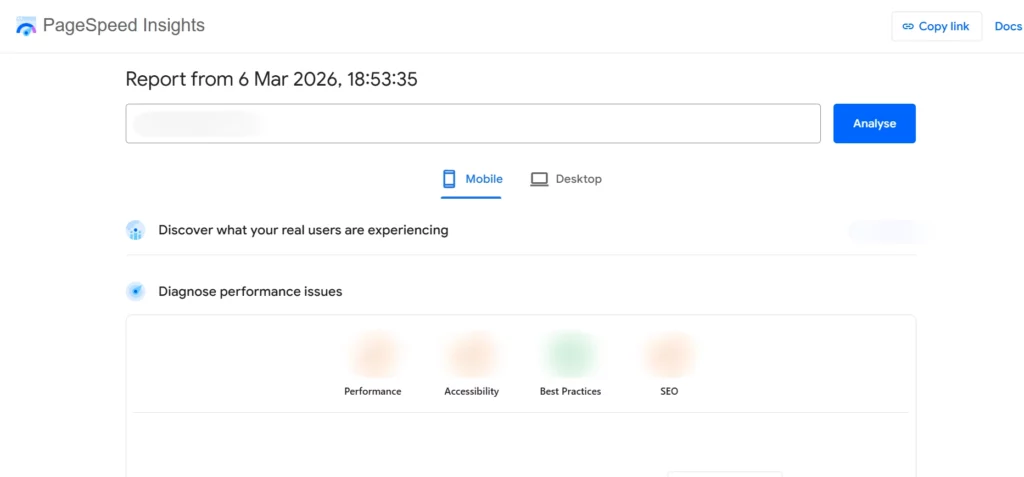
Fig 3. PageSpeed Insights
- HTTPS – Here, you will be able to see if all your pages are providing a secure connection.
7. Enhancements
This section also has two sub-sections:
- Breadcrumbs – Shows you how robust the schema markup of your pages are, which essentially tells you whether they can appear as rich results.
- Profile page – This also shows stats about schema markup, but only about your profile page.
8. Security and Manual Actions
- Manual Actions – shows you if any manual action taken on the website is causing indexing issues.
- Security – Shows if your sites are secure for safe navigation by users.
9. Links
- External Links – Shows you pages from your website that are being linked by other websites, shows you the linking sites and your top linked texts.
- Internal Links – Shows you pages from your website that are being linked by other pages in your website.
10. Achievements
Shows you all the milestones that you have crossed in terms of search impact.
11. Settings
Settings has two primary sub- sections, general settings and crawling.
General Settings
- Ownership verification – Only a verified owner is given access to Google search console.
- Associations – These are connections between your website property and other Google services (e.g., Google Analytics, YouTube, Google Ads, Play Console)
- Change of Address – Here you can let Google know if your website moves to a different address.
- Bulk Data Export – From here you can export your daily stats to BigQuery, which according to Google cloud is a “fully managed, AI-ready data platform that helps you manage and analyze your data with built-in features like machine learning, search, geospatial analysis, and business intelligence.”
Conclusion
Google Search Console is one of the most important tools for digital marketers. It is very user friendly and detailed. However, understanding the meaning of various metrics requires dedicated study and training. Metrics are made available to you so that you may make changes that improve your SEO, therefore, comprehending them is the key to success. Google Search Console focuses on pre-click (keyword ranking, impressions, clicks) search performance, while Google Analytics focuses on post click user behaviour and involves tracking conversions, bounce rates and sessions. Once again, understanding metrics becomes very important. We at Gyaner, one of the best digital marketing institutes of Hyderabad offer a dedicated Google Analytics course, and do not worry, in it, we cover Google Search Console too. Why wait? Sign up for a free demo class with us today and jumpstart your Digital Marketing Career.
FAQs
Open Google Search Console > Performance > Search Results, scroll to Queries to see the keywords you are ranking for, filter by Pages, Country, or Date. Find keywords with high impressions and low clicks to optimize for better traffic.
Open Google Search Console > Indexing > Sitemaps. Under the section titled “Add a new sitemap” paste the URL of your sitemap.
After updating your content or fixing a SEO issue you should ask Google to recrawl your page. Here’s how to do it: Open Google Search Console > URL inspection > paste the URL of your updated page > click on “Request Indexing”.
Log in to Google Search Console > Experience > Core Web Vitals > Page Speed Insights.
How to export data from Google Search Console to sheets?